
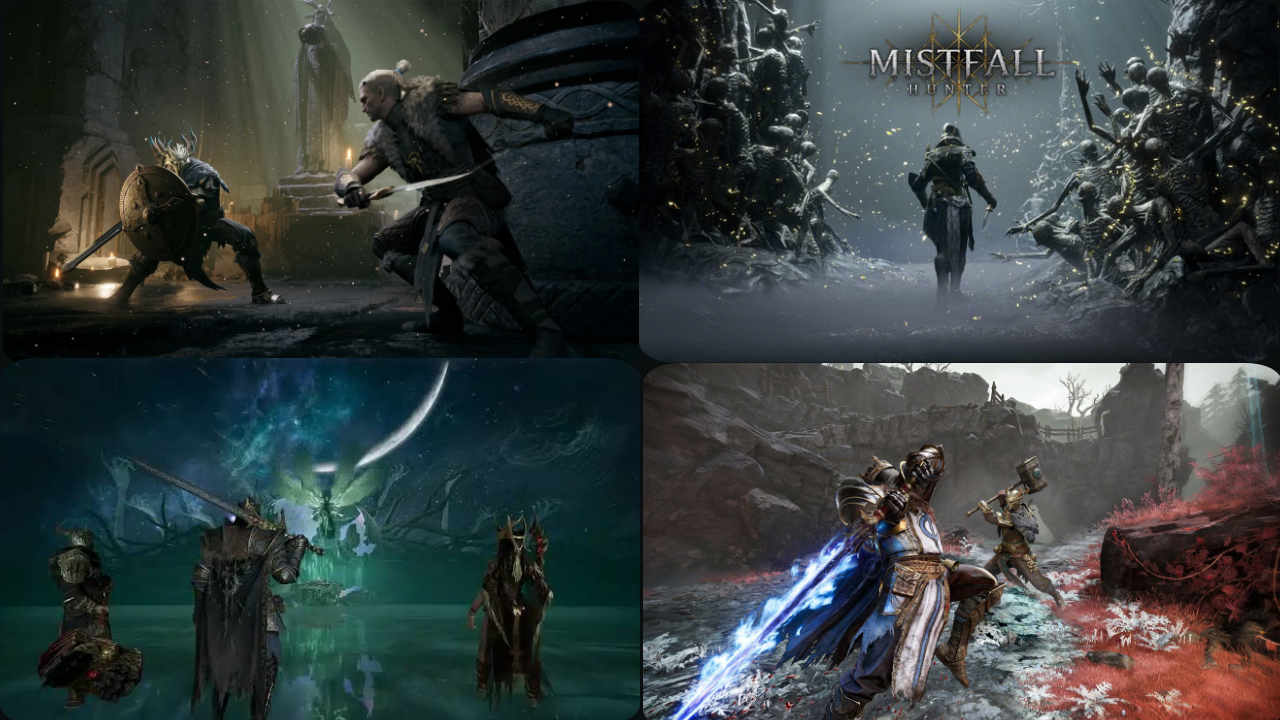
Mistfall Hunter Graphics Settings Optimisation Tips If you’re a gamer and want to get smoother frame rates and better image quality, you can often fiddle with a few important graphics settings. The game can look impressive on high settings, but demanding visual effects can really put the pressure on the graphics card, processor and system memory.
Every PC is different so the best Mistfall Hunter PC settings will vary from PC to PC. That said, most players can get a more stable experience by tweaking resolution, shadows, textures, reflections, and upscaling without making the game look noticeably worse.
Configure the appropriate display
In general, fullscreen mode performs best, because it gives the game more direct access to the system resources. Borderless mode is easier to switch between applications, but it can slow performance a little bit sometimes.
V-Sync can get rid of tearing, but it can also cause input lag. If your monitor supports variable refresh rate you may get better results by disabling V-Sync in-game and enabling G-Sync or FreeSync in your graphics driver.
Upscale to Higher Frame Rates
Players should begin by selecting the Quality mode, if Mistfall Hunter offers NVIDIA DLSS, AMD FSR, or Intel XeSS options. This setting is usually a good compromise between seeing clearly and getting a few more frames per second.
Balanced mode might be more appropriate for mid-tier graphics cards, while Performance mode is best reserved for higher resolutions or less powerful hardware. Aggressive upscaling can soften the image, so avoid it if you have a 1080p display.
Reflections, lower First Shadows
Usually shadows and reflections are the most difficult graphics settings to get right.
Lowering shadow quality from Ultra to High or Medium will give you a performance boost with little to no change to the image. You can also reduce the quality of reflections to Medium, especially in areas with water, shiny surfaces or complicated lighting.
Keep the texture quality as high as possible
If you have enough VRAM on your graphics card you can generally leave texture quality at High.
Players should be able to comfortably run High textures at 1080p or 1440p if they have 8GB or more video memory. Systems with 4GB or 6GB VRAM may need to use Medium textures to avoid stuttering, delayed texture loading or abrupt drops in frame-rate.
Reducing Ambient Occlusion and Volumetric Effects
Volumetric fog, particle effects and lighting can add an impressive atmosphere but can also slow frame rates down in busy scenes.
Medium volumetric quality is a nice performance boost and retains most of the game’s visual style. If the performance is still unstable, you can try reducing Ambient Occlusion from Ultra to High or Medium.
Sources
- Steam Support – PC Game Performance and Troubleshooting General Tips
- NVIDIA – Graphics driver updates, DLSS info and how to optimise.
- AMD – Radeon driver support, FSR tech, performance tips.
- Intel Gaming – XeSS info and graphics optimisation resources
- PCGamingWiki – Community-run wiki for PC game settings and technical information.
- Digital Foundry – Technical Analysis of Graphics and Performance Settings